
On this page
Streaming server: what it is, how it works, and how to choose one
A streaming server is the program in the middle of every live video system. Cameras, encoders and browsers push video into it; it checks they are allowed to, optionally converts the video into other qualities and formats, records it, and hands it to viewers, players, CDNs and platforms in whatever protocol each one can play. This guide covers the whole job, with the numbers that decide sizing and cost, and links to a deeper article on each part.
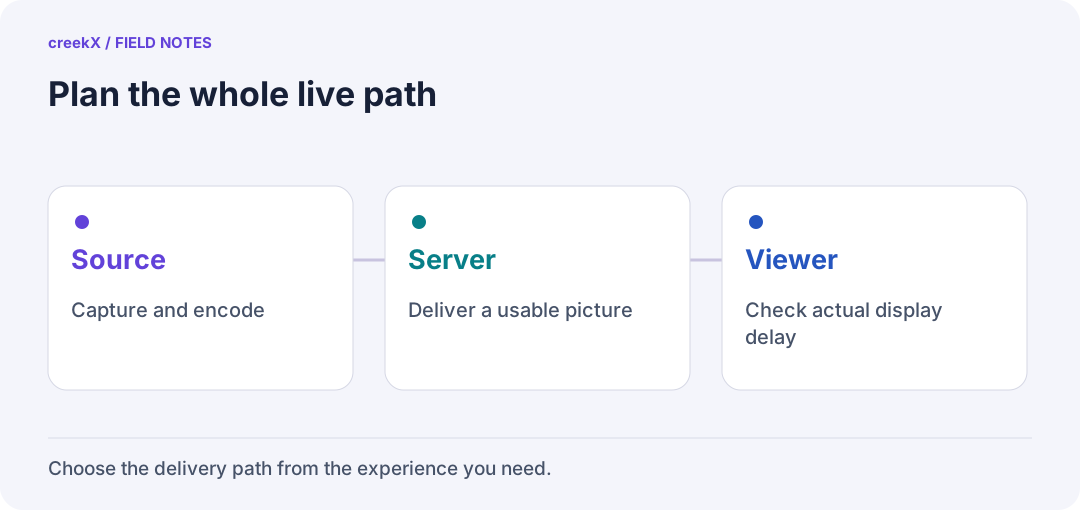
- SourceCapture and encode
- ServerDeliver a usable picture
- ViewerCheck actual display delay
What a streaming server is
The term covers three overlapping things, and it helps to separate them:
- A live streaming server (also called a media server or streaming engine) receives live video and redistributes it in real time. This is what this guide is about.
- A video-on-demand server serves files that already exist. Any web server can do this for HLS, because HLS is just files over HTTP.
- A CDN caches and distributes packaged video (usually HLS segments) from many edge locations. It does not ingest from cameras or convert anything. It sits in front of a streaming server, which acts as its origin.
The distinction matters when you buy. A CDN alone cannot take an RTSP camera or an OBS feed. A web server alone cannot turn an SRT contribution into sub-second WebRTC. A live streaming server can, and it can feed the CDN when the audience gets large.
How a streaming server works
1. Ingest
Every source arrives over its own protocol. OBS and hardware encoders push RTMP or SRT. IP cameras are usually pulled: the server opens an RTSP session to the camera, often after finding it with ONVIF discovery. Browsers and phones push WebRTC, now standardised as WHIP. Some broadcast gear sends raw MPEG-TS over UDP.
At ingest the server does two jobs before any video moves on. It authenticates the source, usually with a secret stream key or a short-lived token, and it normalises the stream: reads the codec, resolution, frame rate and timestamps, and decides whether the stream can be passed on as it is. A stream with broken timestamps or a codec the outputs cannot carry must be fixed here, not at the player.
2. Convert (transcode, transmux)
Converting has two very different costs, and confusing them is the most common sizing mistake.
- Transmuxing changes the container, not the picture: RTMP's FLV to HLS's MPEG-TS or fMP4 segments, or RTP for WebRTC. The H.264 frames are copied. It costs almost nothing. On creekX's measured 4-core server, 49 incoming 1080p streams, each recorded, used 13% of the processor (benchmarks).
- Transcoding decodes the picture and encodes it again, usually to produce an adaptive bitrate ladder (1080p, 720p, 480p) so a viewer on a weak connection still gets a picture. On the same server a 720p/480p/360p ladder from a 1080p source cost about 0.6 of a core per live: four lives fitted at 64% CPU, six did not.
Audio is a quieter cost. WebRTC carries Opus, while most encoders send AAC, so a server offering both WebRTC and HLS converts audio for every live stream. It is cheap per stream, but it is not free, and it must not drift out of sync over a 24-hour stream.
3. Record
Recording without re-encoding is a disk problem, not a processor one. The arithmetic is simple: gigabytes per hour is about bitrate in Mbit/s times 0.45. A 5 Mbit/s 1080p stream writes about 2.3 GB an hour; a camera recording 24/7 at 6 Mbit/s writes about 65 GB a day, close to 2 TB a month. A server that records should also caption and index its recordings, or nobody finds anything in them later.
4. Deliver
Delivery is where the protocol choice becomes visible to viewers. WebRTC (played with WHEP) is sub-second and interactive. HLS and low-latency HLS play on every device and cache on CDNs. Restreaming sends one copy to YouTube, Facebook or Twitch and lets their networks carry the crowd. One server typically does all of these at once from the same ingest.
Protocols, one by one
A streaming server is judged first by the protocols it speaks. Here is what each one is for, in practice. The SRT vs RTMP vs WHIP article compares the ingest side in more depth.
| Protocol | Direction | Transport | Typical use |
|---|---|---|---|
| RTMP / RTMPS | In (and out to platforms) | TCP 1935 / TLS | OBS, hardware encoders, restreaming to YouTube and Facebook |
| SRT | In and out | UDP, with retransmission and AES encryption | Contribution over the public internet, bonded cellular, remote production |
| RTSP | In (pulled from cameras) | TCP 554/8554, RTP over UDP or TCP | IP cameras, NVRs, industrial video |
| WebRTC (WHIP) | In | UDP (DTLS-SRTP), TCP fallback | Going live from a browser or phone with no software installed |
| WebRTC (WHEP) | Out | UDP (DTLS-SRTP), TCP fallback | Sub-second watching: auctions, betting, guests, camera monitoring |
| HLS | Out | HTTPS, segment files | Every device, CDNs, big audiences, 24/7 channels |
| Low-latency HLS | Out | HTTPS, partial segments | Large audiences that still need a delay of a few seconds or less |
RTMP
RTMP is old, TCP-based and nearly universal on the sending side: every encoder and every platform speaks it. It is a poor delivery protocol (no browser plays it any more), but it remains the default way to push a stream into a server or out to a platform. Over a lossy long-distance link TCP stalls on loss, which is the gap SRT fills. Encrypt it with RTMPS once the server has a domain and a certificate. How to point OBS at your own server: OBS to your own server.
SRT
SRT (Secure Reliable Transport) runs over UDP and retransmits lost packets within a fixed latency window you choose, so a contribution feed survives packet loss that would stall RTMP. The rule of thumb is a window of about four times the round-trip time; more for bad networks. It also encrypts with AES using a passphrase. Tuning in detail: SRT over bad networks.
RTSP
RTSP is how IP cameras offer video. Unlike RTMP, the server usually connects to the camera rather than the other way round, which means the server needs a network route to the camera and the camera's credentials. Browsers cannot play RTSP, so the server's job is to turn it into WebRTC or HLS: RTSP to WebRTC and the IP camera streaming server guide.
WebRTC, WHIP and WHEP
WebRTC is the only way to get a sub-second picture into an ordinary browser. Its weakness was always signalling: every server invented its own. WHIP (publishing) and WHEP (playback) fix that with one HTTP request each, so OBS, browsers and players can talk to any compliant server. WHIP and WHEP explained covers the handshake; behind strict firewalls you need a TURN relay (TURN for WebRTC behind NAT).
HLS and low-latency HLS
HLS cuts the stream into segment files and a playlist. Because those are ordinary HTTP files, it plays on every phone, TV and browser and caches on any CDN. The cost is delay: a player buffers several segments. Low-latency HLS publishes partial segments and lets the player ask for the next part before it exists, which brings the delay down to a few seconds while keeping the cacheability. More: low-latency HLS and HLS behind a CDN.
Latency tiers
"Latency" here means glass-to-glass delay: from the camera to the viewer's screen. It is the number that decides the delivery protocol, and so most of the architecture.
| Tier | Delivery | Typical delay | creekX, measured | Good for |
|---|---|---|---|---|
| Real time | WebRTC (WHEP) | under 1 s | 0.49 s median, 0.68 s worst | Auctions, betting, Q&A, guests, camera monitoring |
| Low latency | LL-HLS | 1–5 s | 1.23–1.28 s median, 1.40 s worst | Sport, events with chat, large interactive audiences |
| Standard | HLS | 6–30 s (tuned: 3–5 s) | 3.4–3.8 s median with several qualities | Huge audiences, 24/7 channels, replay |
The creekX figures were measured on 2026-10-08 on a local network with OBS tuned for real time (benchmarks). Over the internet add the network's own delay. The useful question is not "what is the lowest latency" but "does anyone act on what they see": a bidder, a bettor, a guard, a guest. If yes, plan WebRTC. If no, HLS is cheaper to scale. The trade-off in detail: WebRTC vs LL-HLS latency.
Hardware sizing
A streaming server has two independent capacity questions. Processor and memory are set by how many streams you transcode. Bandwidth is set by how many people watch, times the bitrate they watch at. Viewers barely touch the processor; transcoding barely touches the network.
What creekX measured on a 4 vCPU, 8 GB cloud server with about 890 Mbit/s upload:
| Load | Result |
|---|---|
| Incoming 1080p lives, each recorded | 49 at 13% CPU, 1.5 GB memory |
| WebRTC viewers of one 1080p live (2.5 Mbit/s) | 500 at 37% CPU |
| Low-latency HLS viewers of one 1080p live | 400 at 0.80 cores, 0 stalls |
| ABR ladder (720p, 480p, 360p from 1080p) | about 0.6 core per live; 4 lives at 64% CPU |
Two consequences follow. First, past a few hundred viewers the network port, not the
processor, is the first limit: 890 Mbit/s is roughly 340 viewers at 1080p, 430 at 720p and
850 at 480p (calculated, not measured). Egress is plain multiplication:
concurrent viewers × bitrate, so 500 viewers at 5 Mbit/s need 2.5 Gbit/s.
Second, if you need an ABR ladder, budget cores per stream, not per viewer. Leave 30–40%
processor headroom: a live encoder that touches 100% falls behind and cannot catch up.
Memory is rarely the bottleneck: plan 8 GB as a floor and 16 GB for a few dozen transcoded streams. Disk grows forever if you record (see the 0.45 rule above). The full method is in how to size a self-hosted streaming server, and the pricing calculator does the arithmetic for your numbers. The load tests ran on 4-, 8- and 16-core servers. Still on the test list: a 32-core server, viewers on many real networks, and real IP cameras over days of recording.
Self-hosted or cloud
"Cloud streaming" usually means a managed service that meters you per hour encoded and per hour watched. "Self-hosted" means you run the streaming server software on a machine you control: in your building, in a data centre, or on a cloud virtual machine. A self-hosted server in a cloud VM is still self-hosted; what matters is who runs the software and whose meter you are on.
| Self-hosted streaming server | Managed cloud service | |
|---|---|---|
| Where video and viewer data live | Your servers only | The provider's |
| Cost shape | Fixed: server, bandwidth, licence | Metered: per input hour and per viewer hour |
| Busy month | Same bill, until a port is full | Bigger bill |
| Works without internet | Yes, on a closed network | No |
| Who runs it | You (updates, backups, monitoring) | The provider |
| Instant global reach | Add a CDN or restream | Built in |
Self-hosting wins when data must stay in-house (government, healthcare, security, industrial sites), when the network is closed or offline (offline and air-gapped streaming), and when volume is high enough that a per-hour meter costs more than a server. A managed service wins when you stream rarely, have no one to run a server, or need a global audience next week. The 12-month arithmetic at 10, 50 and 200 streams is worked through in self-hosted vs cloud streaming server cost.
Security
A streaming server has two doors: the one sources publish through, and the one viewers watch through. Both need locks.
- Publishing. Every source needs its own secret key or token; a leaked key lets anyone broadcast on your channel. Keys are rotated, never logged, and never embedded in a page.
- Transport. RTMPS for RTMP, an SRT passphrase for SRT, https for the app and HLS. WebRTC is always encrypted (DTLS-SRTP). Browser publishing requires https anyway, because browsers only give camera access to secure pages.
- Watching. Public, link-only, signed-in or token-protected viewing. Expiring signed tokens stop a watch link being shared forever (expiring tokens), and viewer logs show who watched.
- The server. Open only the ports you use (ports and firewall rules), keep the admin interface behind sign-in with single sign-on where you have it, and update the server.
More in how to secure live streams and the security docs.
Cost
A self-hosted streaming server costs four things, and only one of them is software:
- The server. A machine sized for your transcoding, rented or owned.
- Bandwidth. Usually the largest line. Some providers include a large allowance or an unmetered port; hyperscale clouds meter egress per gigabyte, which at video volumes dominates everything else. 250 concurrent viewers at 2 Mbit/s for 200 hours a month is about 45 TB of egress.
- The software licence. Free for open-source servers; for creekX, $99 per server per month or $999 per server per year, with viewers and bandwidth not metered by us.
- Someone's time. Installing, updating, watching it. This is the cost open-source projects shift onto you, and the one managed services charge most for.
For comparison, a managed service lists prices per hour. AWS Interactive Video Service, for example, listed $2.00 per input hour for a standard channel and $0.072 per HD viewer hour in North America (first tier) when we checked in October 2026. At ten streams of 200 hours a month with 25 viewers each, that is about $7,600 a month before discounts. The worked comparison shows where the lines cross.
How to choose a streaming server
- List your sources. OBS, hardware encoders, IP cameras, browsers, phones, MPEG-TS gear. Check each protocol is supported today, not on a roadmap.
- Decide the delay. If anyone acts on what they see, you need WebRTC delivery, not only HLS.
- Estimate the peak. Concurrent viewers times bitrate gives bandwidth; streams times qualities gives cores. Decide which viewers go to your server, a CDN or a platform.
- Check everything around the video. Recording, captions, an embeddable player, viewer access control, user roles, single sign-on, an API and webhooks.
- Check how it runs. Installation, updates, backups, health checks and what happens when the network drops. A server you cannot operate is not cheap.
- Try it on your own footage. Every vendor's numbers, ours included, were measured on someone else's hardware.
An honest comparison of eight options, open-source and commercial: best streaming server software in 2026. The side-by-side tables are on the compare page.
Try it. creekX Media Server installs on Ubuntu 24.04 with one command: RTMP, SRT, RTSP and WebRTC in; sub-second WebRTC and low-latency HLS out; recording, restreaming and 24/7 channels. The trial is free for 14 days. Install it or read the quick start.
Further reading
Understand
- Streaming protocols explained
- How a live stream travels, with the delay at each step
- Streaming server vs media server vs CDN
- Live transcoding explained
- Streaming server glossary
- SRT vs RTMP vs WHIP
- WHIP and WHEP explained
- What a WebRTC server does
- Low-latency HLS
- Adaptive bitrate streaming
- CPU for 1080p transcoding
Compare
- Self-hosted vs cloud: 12-month cost at 10, 50 and 200 streams
- Best streaming server software in 2026
- WebRTC vs LL-HLS latency
- Compare creekX
Run it
- Self-host a streaming server on Ubuntu
- Streaming server ports and firewall rules
- Streaming server troubleshooting
- Sizing a streaming server
- Install on a server (docs)
Use cases
- Live streaming for online auctions
- Streaming IP cameras to a website without a cloud subscription
- 24/7 playout from a video library
- Restream to YouTube, Facebook and Twitch
Run the service, not just the server
Once the first stream works, use these practical guides to check the viewer experience, plan storage and prepare for failures. Each guide covers a different job.
- Why does a live stream take so long to start?
- Your server says live. Is the viewer seeing good video?
- Move from RTMP to WHIP without risking your next event
- Why live video works on a laptop but fails on a phone
- Check the codec before you buy a bigger streaming server
- How much disk will tonight’s live recordings need?
- The streaming rehearsal that catches failures before the audience arrives
- What happens when an encoder disconnects? Run a recovery drill
- Make streaming webhooks safe to retry
- Measure streaming latency without fooling yourself
Implementation check
Build one complete vertical test
You need: A source, a private stream, an outside viewer and a defined recording/access requirement.
- Publish one moving picture with sound using the documented encoder route.
- Test direct playback, then the final page or embed with allowed and denied viewers.
- End the source, inspect the finished recording and record recovery actions before adding more workload.
Pass when: The full source-to-viewer journey works for the stated devices; each additional requirement has its own acceptance result.
If it fails: Capacity, security and recovery cannot be inferred from a product screenshot or one successful connection.
Frequently asked questions
What is a streaming server?
Software that receives live video from cameras, encoders or browsers, optionally converts it into other qualities and formats, records it, and delivers it to viewers and platforms in real time. Typical inputs are RTMP, SRT, RTSP and WebRTC (WHIP); typical outputs are WebRTC (WHEP), HLS, low-latency HLS and restreams to YouTube or Facebook.
What is the difference between a streaming server and a CDN?
A streaming server ingests, converts and packages live video; a CDN caches and distributes the packaged result (usually HLS segments) to large audiences. Many setups use both: the streaming server as origin, the CDN in front of it.
How much hardware does a streaming server need?
Processor is set by how many streams you transcode, bandwidth by how many people watch. creekX measured 49 recorded 1080p lives at 13% of a 4-core server, about 0.6 core per live for a three-quality ladder, and roughly 340 viewers at 1080p on an 890 Mbit/s port.
Which protocol gives the lowest latency?
WebRTC, typically under a second from camera to screen (creekX measured 0.49 s median on a local network). Low-latency HLS is usually 1 to 5 seconds and standard HLS 6 to 30 seconds.
Can I run my own streaming server?
Yes. A self-hosted streaming server such as creekX installs on a Linux server you control, on premises or in any cloud, so the video, recordings and viewer data stay on your own infrastructure. It also works on a network with no internet.
Choose your next streaming task
- What VOD means and how it differs from live video — Decide what viewers should watch after the event.
- MKV vs MP4 for recordings and web playback — Choose a file container for the next stage of delivery.