
On this page
How much disk will tonight’s live recordings need?
Start with the total recorded bitrate, multiply by the recording time and number of simultaneous feeds, then add space for working files and a reserve. Do not size the disk from video resolution alone.
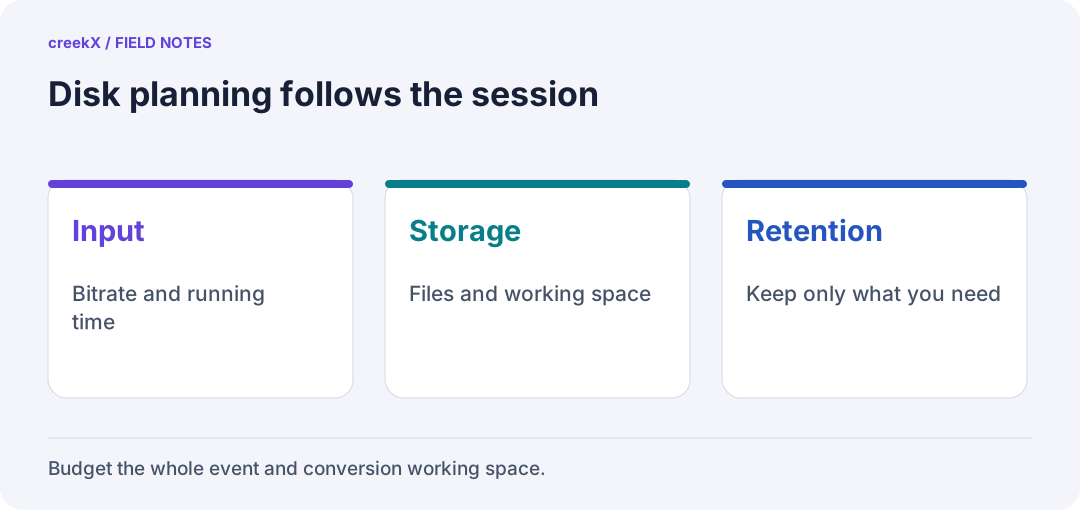
- InputBitrate and running time
- StorageFiles and working space
- RetentionKeep only what you need
Budget the evening, not just the first hour
An event starts with two cameras. A presenter asks for a clean feed. Someone adds a backup encoder. The plan still says “two streams”, but four recordings may now be writing to the same disk. List each recorded input before choosing a drive. Include audio in the bitrate, and say whether recordings are continuous or only made during a live session.
For a variable-bitrate source, use a measured average for an estimate and a higher planning value for a busy scene. A quiet interview and a fast sports feed may share a resolution without sharing a storage budget. Keep the assumptions beside the calculation so the next operator can change them.
A worked example you can check
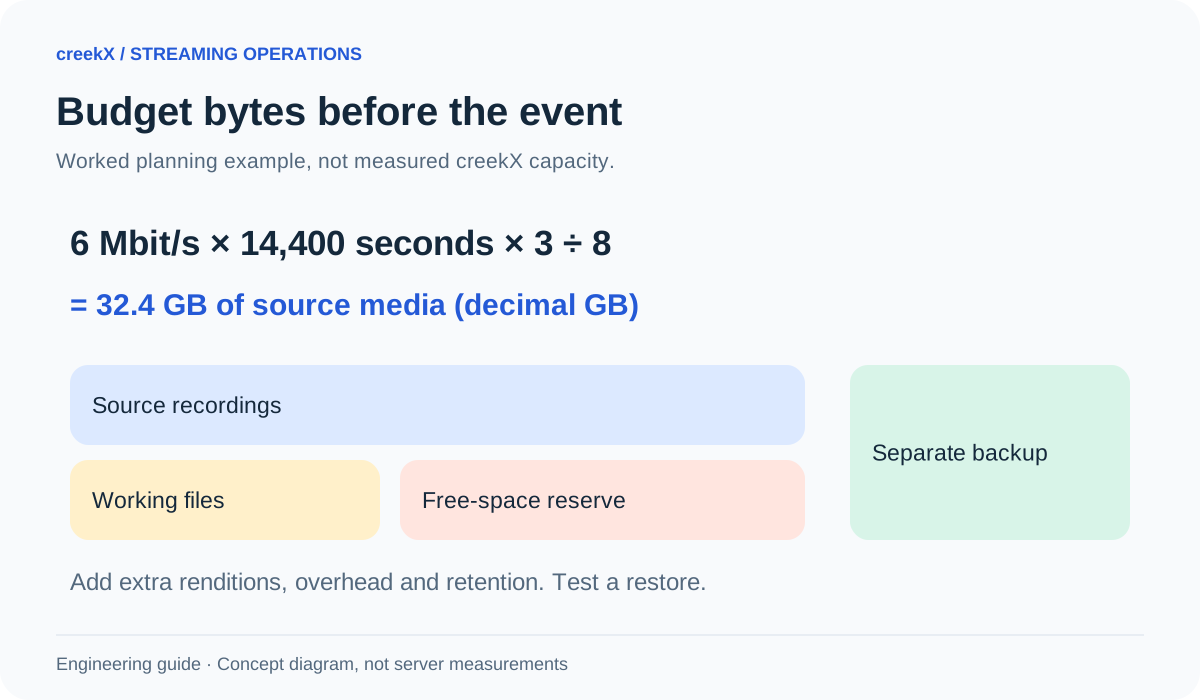
These are planning numbers, not results measured on creekX. Use decimal units: one GB is one billion bytes, while a disk tool may show GiB.
estimated GB = total Mbit/s × 3,600 × hours × feeds ÷ 8,000
6 Mbit/s × 3,600 × 4 hours × 3 feeds ÷ 8,000 = 32.4 GB
Here, a four-hour event with three feeds needs about 32.4 GB for encoded media before container overhead. If you reserve an additional 30% of that estimate, the event budget becomes 42.12 GB. That 30% is an example allowance, not a safe universal setting. Longer events, uncertain bitrates and conversion jobs may need more.
| Planning item | Example allowance | Why it matters |
|---|---|---|
| Three live recordings | 32.4 GB | Calculated media size |
| Example extra allowance | 9.72 GB | Room beyond the simple estimate |
| Existing library and uploads | Measure separately | They already occupy this disk |
| Operating free-space reserve | Choose and monitor separately | The server needs room after the event |
Check an actual recording
Use a local recording you are allowed to inspect. The official ffprobe documentation describes reading media information and selecting output fields. This command reads duration and size; it does not change the file.
ffprobe -v error -show_entries format=duration,size,bit_rate \
  -of json "event-test.mp4"
Divide the file size by duration to estimate bytes per second. Compare representative samples, including the most active scene. A short clip might not reflect a full evening’s average. Inspect the full recording after it closes: an incomplete file and a finished recording are different test cases.
Count files that are easy to miss
- Uploaded videos waiting for conversion and the converted copies.
- More than one quality or codec, where your workflow creates them.
- Recordings still waiting to finish copying to external storage.
- Logs, database growth, operating-system updates and backups stored locally.
- A second event arriving before the previous event has been archived.
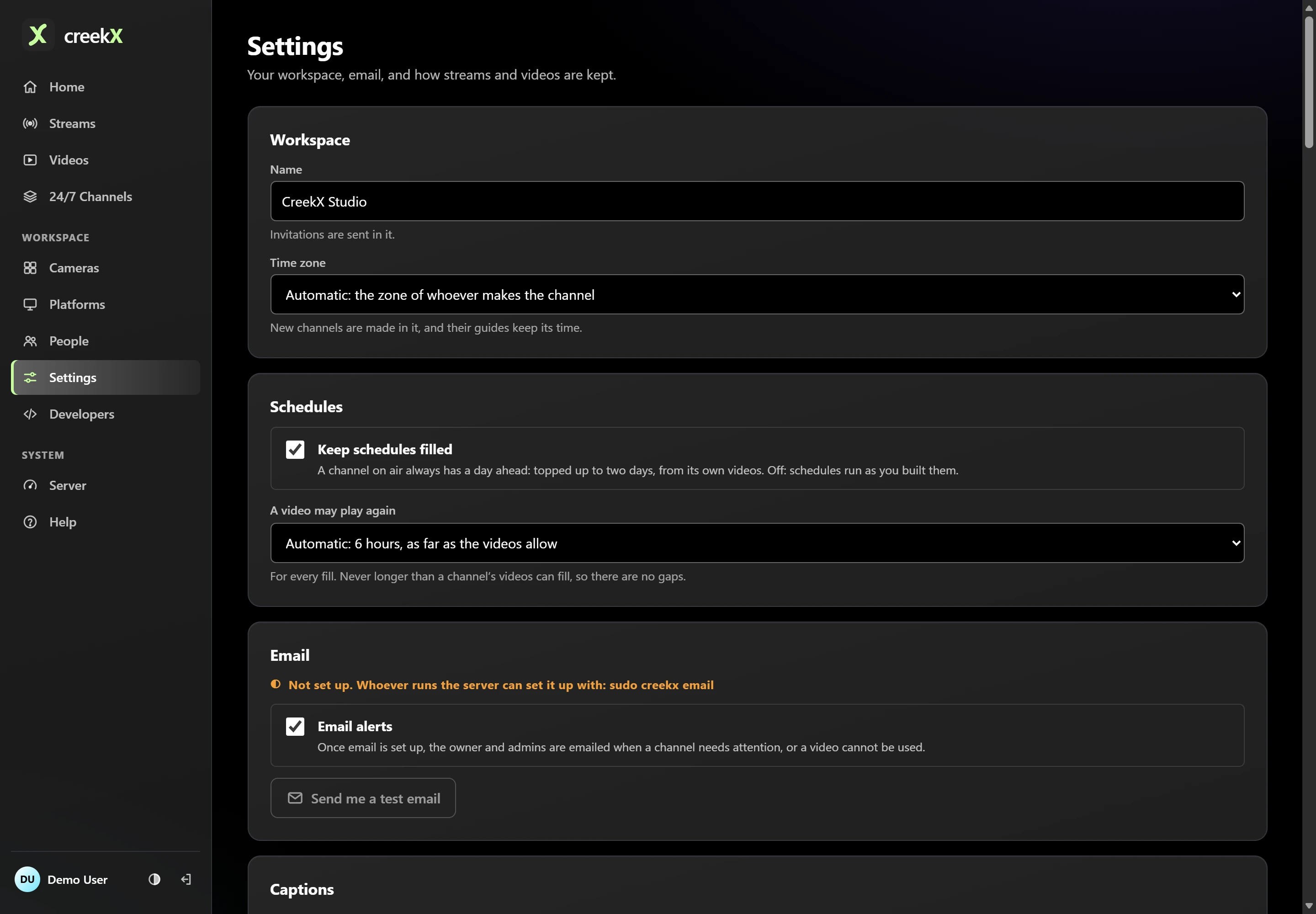
In creekX, check Record every live on the stream and finished entries under Past lives. Open a completed recording in the library and verify picture, sound and duration. The recording guide explains these controls and the optional copy to your own S3-compatible storage.
Make retention a decision somebody owns
Write down who may delete a recording, how long it must be kept and what proves an external copy is usable. Do not assume a file has been safely archived because a transfer was started. Check its completion, access and playback. Keep your organisation’s retention obligations separate from this capacity calculation.
A recording copy is not the whole server. Configuration, accounts and other state need their own backup. Follow the backup guide, keep recovery material private and practise restoring on a separate test installation. Never restore over the live event server to see whether a backup works.
Before opening the doors
Write down current free space, the event estimate, your reserve and who reacts if space falls below it. Check again during rehearsal. Start with server sizing for the wider hardware plan, then use the event rehearsal checklist to prove recording and playback together. Read the streaming server guide and prepare your server before requesting a trial key.
Implementation check
Compare the estimate with a closed file
You need: A short authorized recording and free-space readings from its storage volume.
- Inspect duration and byte size with the read-only ffprobe command above.
- Calculate bytes per second from that file, then scale to planned simultaneous recordings and duration.
- Add processing copies and an operating reserve separately. Stop the test source and verify its finished replay.
Pass when: The budget states its units, measured source sample and extra allowances.
If it fails: A variable-bitrate sample from a quiet scene can understate the event. Check a busy scene before choosing the planning value.
Frequently asked questions
Does 1080p tell me how much disk a recording needs?
No. Bitrate and duration determine the main storage requirement. Two 1080p feeds can have very different bitrates.
Does a second copy double the local disk requirement?
A separate bucket uses its own space, but local files and temporary work still need room. Measure the actual copy and cleanup workflow.
Plan the recording after the live ends
- Build a video-on-demand workflow — Decide how a viewer gets from the finished recording to playback.
- Choose a recording and delivery container — Work out when a remux is enough and when tracks need conversion.
- Turn a video library into a 24/7 channel — Reuse prepared videos in a scheduled channel.