
On this page
Why live video works on a laptop but fails on a phone
The control-room laptop shows a clean picture. A viewer opens the link on a phone and sees nothing. That does not immediately mean the server is too small. The viewer may be facing a different browser policy, codec, network or access rule.
Start with a reproducible report: device, browser version, watch link or embed, connection type and the exact visible symptom. Keep the private link out of public tickets. Test one cause at a time.
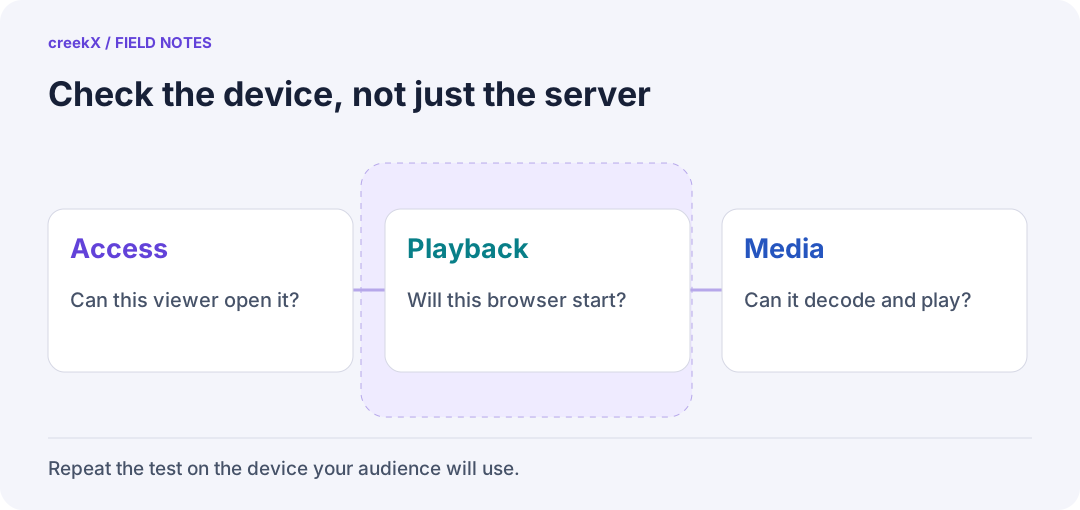
- AccessCan this viewer open it?
- PlaybackWill this browser start?
- MediaCan it decode and play?
First, make sure the viewer can press Play
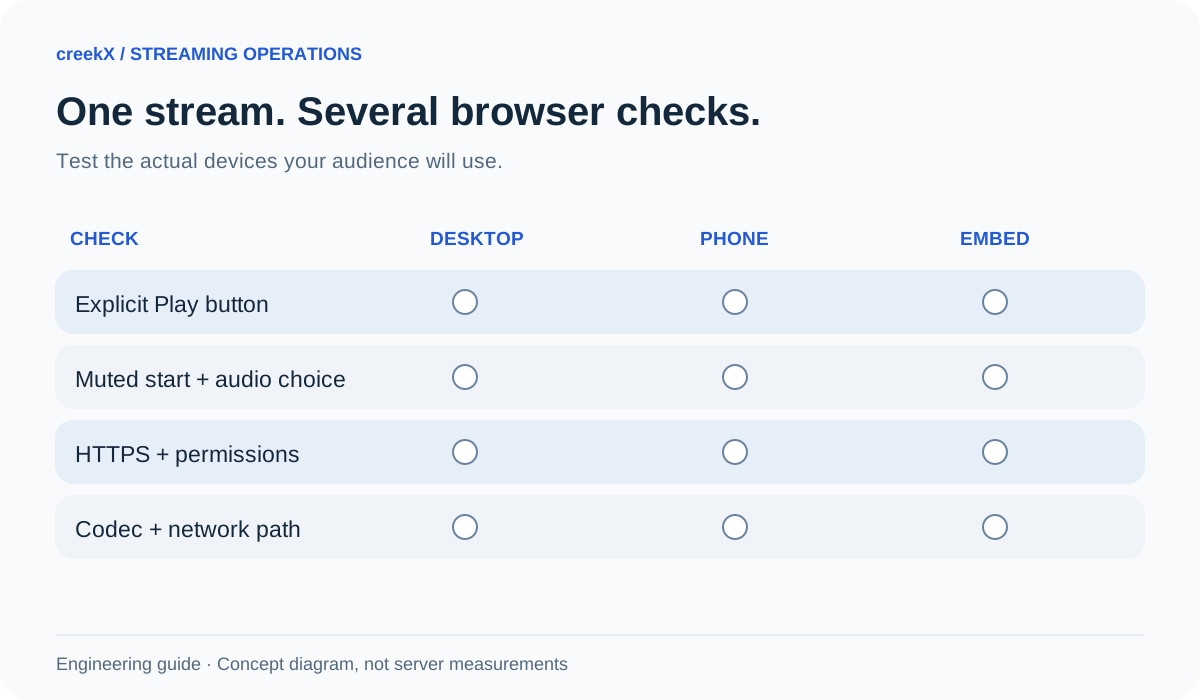
A website must not depend on automatic sound playback. Browsers and user preferences can block it. A muted preview may start when an audible player does not. A visible Play button gives the viewer a direct way to begin and gives your application a place to explain a failure.
For a custom player, handle the promise returned by play(). A rejected
promise should change the visible state, not leave a spinner running forever. The
MDN autoplay guide
explains the role of user interaction, muting, inline playback and permissions.
// In a custom player you own, after a viewer action.
try {
  await video.play();
  showPlayerState('Playing');
} catch {
  showPlayerState('Press Play to try again, or check your connection.');
}
The display function is application code, not a creekX API. Preserve normal controls for keyboard and touch users. Do not hide all controls just to make the player look cleaner.
Compare the watch page with the embed
Open the direct watch link on the same phone. If it works there but fails inside your website, focus on the surrounding page. An iframe can face different permission and security rules. Your site's Content Security Policy, frame policy or mixed-content restrictions may prevent a request that the direct page can make.
Use the embed code supplied by your installed creekX version, then test the final published page. Do not solve an embed issue by removing authentication, sharing a private token publicly or disabling the page's security policy wholesale.
Use a small device matrix
| Test | Record | Why it helps |
|---|---|---|
| Desktop, wired | Browser version and playback method | A stable reference path |
| Phone, Wi-Fi | Operating system and browser | Mobile policy and decoder behaviour |
| Phone, mobile data | Start, sound and sustained playback | A different route to the server |
| Direct link versus embed | The exact page and visible error | Separates the player from its host page |
This is a planning matrix, not a list of combinations already validated by creekX. Choose devices used by your audience. An emulator can help with layout, but it does not prove real hardware decoding or a mobile network path.
Check media compatibility next
Video has more than a codec name. Resolution, profile, frame rate and the audio track also matter. If a camera works in its vendor application, that does not establish browser playback. Check the actual source format and the complete delivery path.
Use a simpler known source as a comparison. If that plays but the original does not, inspect the difference before increasing server resources. The codec compatibility guide shows how to inspect a saved test file and keep browser capability checks in context.
Do not confuse publishing with viewing
Camera and microphone access in a browser has its own permissions and HTTPS requirements. A browser that can view a watch page may still be unable to publish. In creekX, follow the browser publishing guide for the sender and the watch-link guide for the viewer. Those are different tests.
For WebRTC-only failures on a restricted network, investigate the media route and any required relay. For a viewer who can start but then freezes, read the stream health metrics guide.
Finish with a result someone can use
Record the combination that failed, the change made and the repeated result. Include a screenshot of the visible error with secrets removed. A useful acceptance statement is “this device and browser played this source through this page on these networks.” It is more honest than “all phones supported.”
For the larger delivery choices, use the streaming server guide. Change the architecture only after the test points to the part that needs changing.
Implementation check
Keep a useful device failure record
You need: The direct watch link, the final embedded page and the device that fails.
- Try direct and embedded playback on the same device and connection.
- Record play() rejection, media error and whether video frames and sound actually arrive. Avoid saving private URLs in telemetry.
- Compare a second device, then change only one permission, codec or network variable.
Pass when: The report names a reproducible difference instead of saying only that mobile is broken.
If it fails: A resolved play() promise means playback started; continue checking for moving frames and audible sound.
Frequently asked questions
Can a live player always autoplay with sound?
No. Browser policy, user settings and prior interaction affect autoplay. Provide an explicit Play control and handle a rejected play request.
Does adding playsinline fix every iPhone playback problem?
No. It concerns inline presentation, not every codec, access, network or embed failure. Test the actual device and playback route.