
On this page
Streaming server troubleshooting: a symptom-by-symptom guide
Live video fails in a small number of ways, and each has a short list of causes. Work from the symptom: where does the stream stop? Between the source and the server, inside the server, or between the server and the viewer? The commands below are for creekX on Ubuntu, but the reasoning applies to any streaming server.
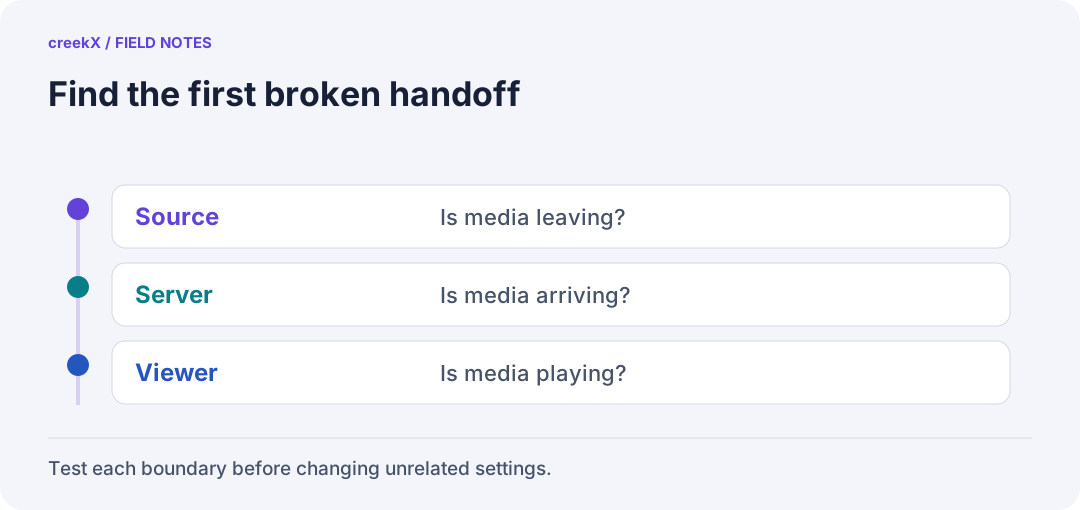
- SourceIs media leaving?
- ServerIs media arriving?
- ViewerIs media playing?
Start here
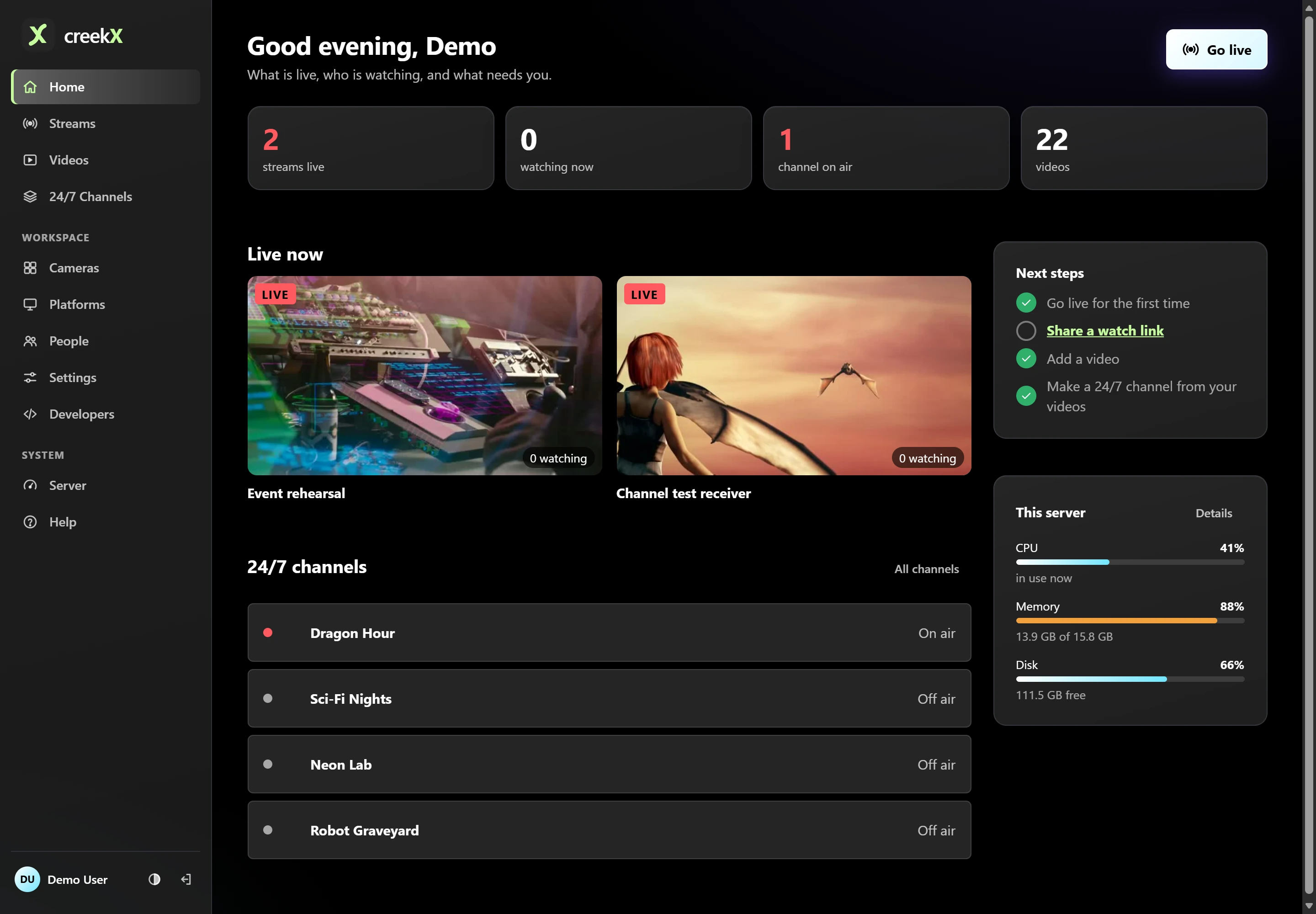
- Run the server's own check. In creekX, More → Help checks the database, disk, FFmpeg, the media engine, email, the licence and channels, and suggests a fix for each failure.
-
Read the logs.
sudo creekx logs. Look for the stream's name around the time it failed. - Find where it stops. If the stream shows as live in the app, the problem is on the viewer side. If it never appears, it is the source or the network in between.
The source cannot connect
OBS or an encoder says "failed to connect"
-
Port closed. RTMP needs TCP 1935 open in the server's firewall and the
cloud provider's security group. Check from outside with
nc -vz your-server 1935. Full list: ports and firewall rules. - Wrong key. Copy the server address and key again; a key may have been rotated.
- RTMPS without a domain. RTMPS needs a certificate, so a domain.
SRT connects, then drops, or never connects
- UDP blocked. SRT is UDP 8890. TCP checks will not show it.
- Latency window too small. SRT retransmits only within its latency setting. Start at about four times the round-trip time, and more on cellular or satellite links: SRT over bad networks.
- Passphrase mismatch. Both ends must use the same one, or none.
An IP camera shows offline
-
The server must reach the camera: try
ffprobe -rtsp_transport tcp "rtsp://user:pass@camera/stream"from the server itself. - Many cameras allow only a few RTSP sessions at once; an NVR may already be using them.
- Use the camera's H.264 stream if it offers H.265 too; browsers play H.264 everywhere.
Going live from the browser does not start
- The page must be https: browsers give camera access only to secure pages.
- WebRTC media needs port 8189 (UDP, and TCP for networks that block UDP).
The stream is live, but viewers have problems
WebRTC: connects, then a black picture
Signalling (https) worked but media (UDP) did not arrive. Either 8189 is closed, the viewer's network blocks UDP and TCP to that port, or the server is behind NAT and advertising its private address. The cure for strict networks is a TURN relay on 443: TURN for WebRTC behind NAT.
HLS: buffering or falling behind
- Bitrate above the viewer's bandwidth. Offer an adaptive bitrate ladder so players can step down.
- Server port full. Concurrent viewers × bitrate must fit the port: about 340 viewers at 1080p on an 890 Mbit/s uplink. Beyond that, put a CDN in front: HLS behind a CDN.
- Keyframes too far apart. Segments start on keyframes; set the encoder to a keyframe every 2 seconds.
Delay much higher than expected
Players drift behind live when they buffer and never catch up. Check the encoder first: B-frames, a long keyframe interval and "quality" presets add delay before the server sees anything. Measured on a local network, creekX's WebRTC median is 0.49 s and LL-HLS 1.23–1.28 s (benchmarks); far above those means something upstream is buffering.
Audio out of sync, or missing
- WebRTC carries Opus and most encoders send AAC, so the server converts audio. No audio on WebRTC only, with audio on HLS, points at that conversion: check the logs.
- Drift that grows over hours is usually a source with a variable frame rate or a float frame rate (29.97 written as 29.97, not 30000/1001). Fix it at the encoder.
The server itself
CPU at 100%, dropped frames
Passthrough is cheap (49 recorded 1080p lives used 13% of a 4-core server); transcoding is not (about 0.6 of a core per live for a three-quality ladder). If CPU is pinned, count the streams with a ladder. Live encoders cannot catch up once they fall behind, so keep 30–40% headroom: sizing a streaming server.
Disk full
Recordings grow at about bitrate (Mbit/s) × 0.45 GB an hour. A 24/7 camera at 6 Mbit/s writes about 65 GB a day. Set a retention period or move recordings to object storage.
A platform says "not sending"
Paste the platform's stream key again: YouTube and Facebook sometimes issue new ones.
Ask for help with the right information
In creekX, More → Help → Download the report collects how the server is doing and its recent messages, with passwords, stream keys, tokens and email addresses removed. Send it with what you did and when it failed. The short checklist for every symptom is in the troubleshooting docs; how the parts fit is in the streaming server guide.
Try it. creekX Media Server installs on Ubuntu 24.04 with one command and is free for 14 days: install it, or start with the quick start.
Put this into practice
- What happens when an encoder disconnects? Run a recovery drill
- The streaming rehearsal that catches failures before the audience arrives
Implementation check
Collect evidence before a restart
You need: Access to the failing client and read access to server status/logs.
- Record the first error, exact version, time zone and whether the failure affects one or all viewers.
- Compare source arrival, watch-page access and moving picture as separate checks.
- Make one targeted change and repeat the same reproduction. Review logs locally before sharing a short redacted excerpt.
Pass when: The report identifies the first failing layer and the effect of a specific change.
If it fails: Restarting every process can erase the original symptom and interrupt otherwise healthy media.
Frequently asked questions
Why does WebRTC connect but show a black screen?
Signalling over https worked but the media did not arrive: the WebRTC media port is closed, the viewer’s network blocks UDP, or the server is behind NAT. A TURN relay fixes strict networks.
Why does my HLS stream keep buffering?
The bitrate is above the viewer’s bandwidth, the server’s port is full, or keyframes are too far apart. Offer an adaptive bitrate ladder, put a CDN in front, and set a keyframe every 2 seconds.