
On this page
How a live stream travels from camera to screen, with the delay at each step
"Latency" is the sum of seven or eight small delays, and most of them are not in the streaming server. Knowing where the time goes tells you which knob to turn: often it is the encoder or the player buffer, not the protocol. Below, one frame's journey, with typical figures for each step.
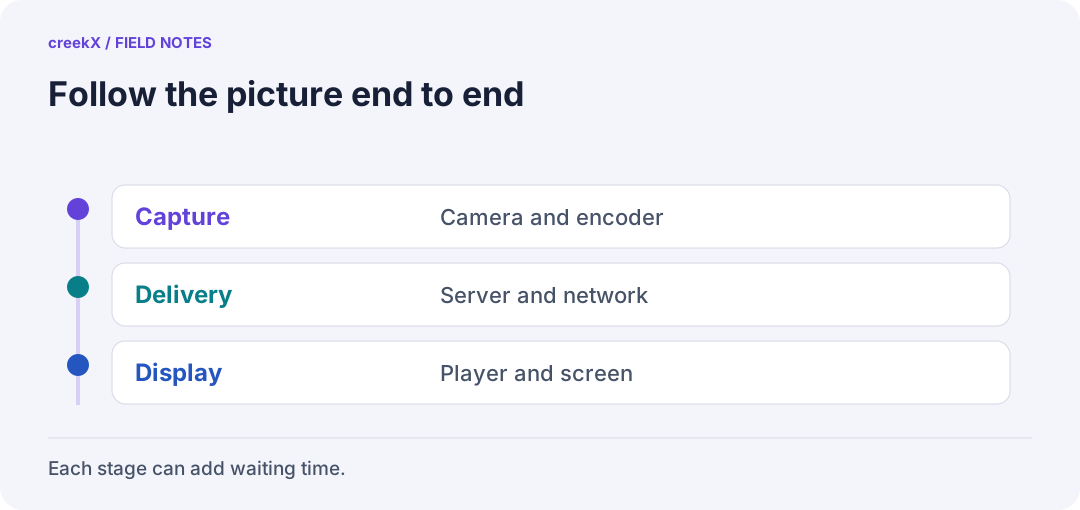
- CaptureCamera and encoder
- DeliveryServer and network
- DisplayPlayer and screen
The journey
| Step | What happens | Typical delay | What sets it |
|---|---|---|---|
| 1. Capture | Sensor exposes, camera reads out the frame | One frame: 33 ms at 30 fps | Frame rate; capture card buffering |
| 2. Encode | H.264 compresses the frame | 10 ms to over 1 s | Look-ahead, B-frames, preset, rate control |
| 3. Contribution | RTMP, SRT, RTSP or WHIP to the server | Network one-way time, plus SRT's window | Distance; SRT latency setting |
| 4. Server | Ingest, transmux, maybe transcode | A few ms passthrough; tens to hundreds of ms transcoding | Transcoding and its buffers |
| 5. Packaging | Only for HLS: wait for a segment or part to finish | Part length (LL-HLS) or segment length (HLS) | Segment and keyframe interval |
| 6. Delivery | Server or CDN to the viewer | Network one-way time | Distance, CDN |
| 7. Player buffer | Holds frames to absorb jitter | ~100 ms (WebRTC) to several segments (HLS) | Player settings |
| 8. Decode and display | Decode, wait for the next screen refresh | One or two frames | Device |
The ranges are typical, not measurements of any one system. What we measured end to end for creekX, on a local network with FFmpeg sending the way a tuned OBS does: WebRTC 0.49 s median, low-latency HLS 1.23–1.28 s, HLS with several qualities 3.4–3.8 s (benchmarks).
Where the time really goes
The encoder
An encoder tuned for quality looks ahead tens of frames and uses B-frames, each of which
waits for a later frame. That alone can add a second. For live interaction, use a
real-time tune (in x264, zerolatency), no B-frames, and a keyframe every 1–2
seconds. This is the cheapest latency win there is.
Contribution over a bad network
SRT holds every packet for its latency window so lost ones can be resent; a 120 ms window adds about 120 ms. RTMP adds no fixed window but stalls on loss. The trade-off: SRT over bad networks and SRT vs RTMP vs WHIP.
Segments, for HLS
A player cannot fetch a segment that is not finished, and standard players buffer about three. With 6-second segments that is 18 seconds before the network is even counted. Low-latency HLS publishes parts of a fraction of a second, which is why it reaches one to a few seconds (low-latency HLS). WebRTC skips segments entirely: each frame is sent as soon as it exists.
The player
Players buffer to survive jitter, and many never catch up after a stall, drifting further behind live over a long event. A good player speeds up slightly or skips to return to its target delay.
Three budgets
| Goal | Encoder | Delivery | Realistic total |
|---|---|---|---|
| Interaction (bids, guests) | Zero-latency tune | WebRTC | Under 1 s |
| Live sport with chat | Real-time tune | LL-HLS | 1–5 s |
| Large broadcast | Quality tune | HLS via CDN | 6–30 s |
Choosing between the first two in detail: WebRTC vs LL-HLS latency. Where the server fits in the chain: the streaming server guide.
Measure it yourself
Point the camera at a clock showing milliseconds, put the player next to it, and photograph both. The difference is your glass-to-glass delay. Repeat with the encoder changed and then the delivery changed, and you will see which step was costing you.
Try it. creekX Media Server installs on Ubuntu 24.04 with one command and is free for 14 days: install it, or start with the quick start.
Implementation check
Locate a delay before tuning it
You need: A stable moving source, an outside viewer and a recording that can show source and receiver together.
- Write down capture, encoder, ingest, processing, delivery and player settings.
- Measure startup and steady-state delay separately. Change only one encoder or playback setting.
- Repeat on the same path and keep failures with the timing observations. Restore the old setting if stability worsens.
Pass when: The before/after comparison names the stage changed and the complete path tested.
If it fails: A player buffer reading omits capture and encoding. Do not publish it as glass-to-glass delay.
Frequently asked questions
What adds the most delay to a live stream?
Usually HLS segment buffering (several segments in the player) and encoder settings such as look-ahead and B-frames. The streaming server itself adds a few milliseconds when it passes the stream through.
How do I measure glass-to-glass latency?
Film a clock showing milliseconds, put the player next to it, and photograph both; the difference is the delay.
Build and check your first stream
- Connect OBS to your own server — Send a real encoder feed through the setup.
- Check stream codec compatibility — Confirm that the video reaching the viewer can be decoded.