
How to stream from OBS to your own server: RTMP and SRT settings that work
OBS does not care whether it is sending to YouTube or to a machine in your office. Give it an address and a key and it streams. What does change, when the server is yours, is how low you can push the delay, and that comes down to three settings most people never touch.
Step 1: get an address and a key from your server
Every live streaming server gives each stream two things: a
server address (for RTMP something like
rtmp://your-server/live) and a stream key, a long secret
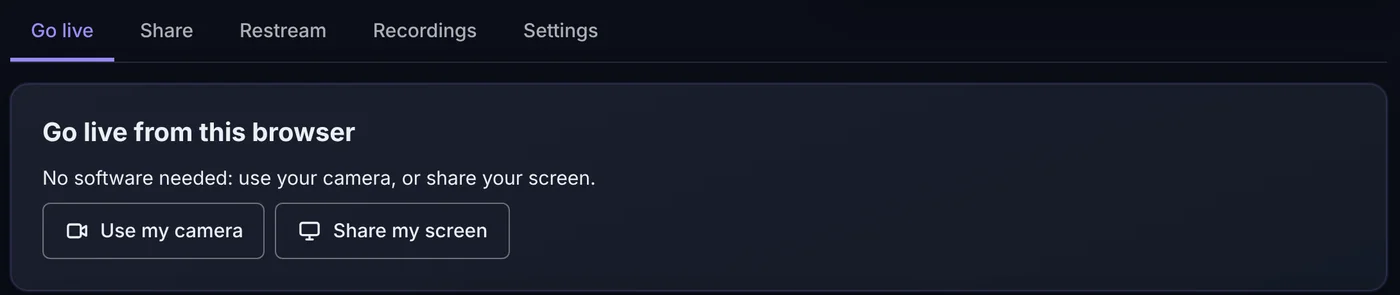
that proves you are allowed to send. In creekX: Streams → New stream,
then Show key under Go live. Both have a Copy button.
Treat the key like a password. Anyone who has it can broadcast as you. If it leaks, make a new one: the old key stops working immediately.
Step 2: paste them into OBS
Press Start Streaming. Within a few seconds the stream shows as live on the server, with your picture.
Step 3: the settings that decide your delay
The full delay was measured, from a frame being drawn to it appearing in a viewer's browser, with a clock stamped into every frame. With OBS's default output settings, the picture arrived about 1.7 seconds late over WebRTC. Most of that was the encoder in OBS itself, holding frames back for B-frames and look-ahead. Changing three settings brought it to about half a second.
- Settings → Output, set Output Mode to Advanced.
- Keyframe Interval: 1 s. A new viewer can only start at a keyframe, so a shorter interval means a faster start.
- No B-frames. With x264, choose the tune zerolatency. With NVIDIA NVENC, set Max B-frames to 0. Browsers will not play H.264 with B-frames over WebRTC, so without them the server can pass your picture through untouched instead of re-encoding it.
Step 4: check that it is live
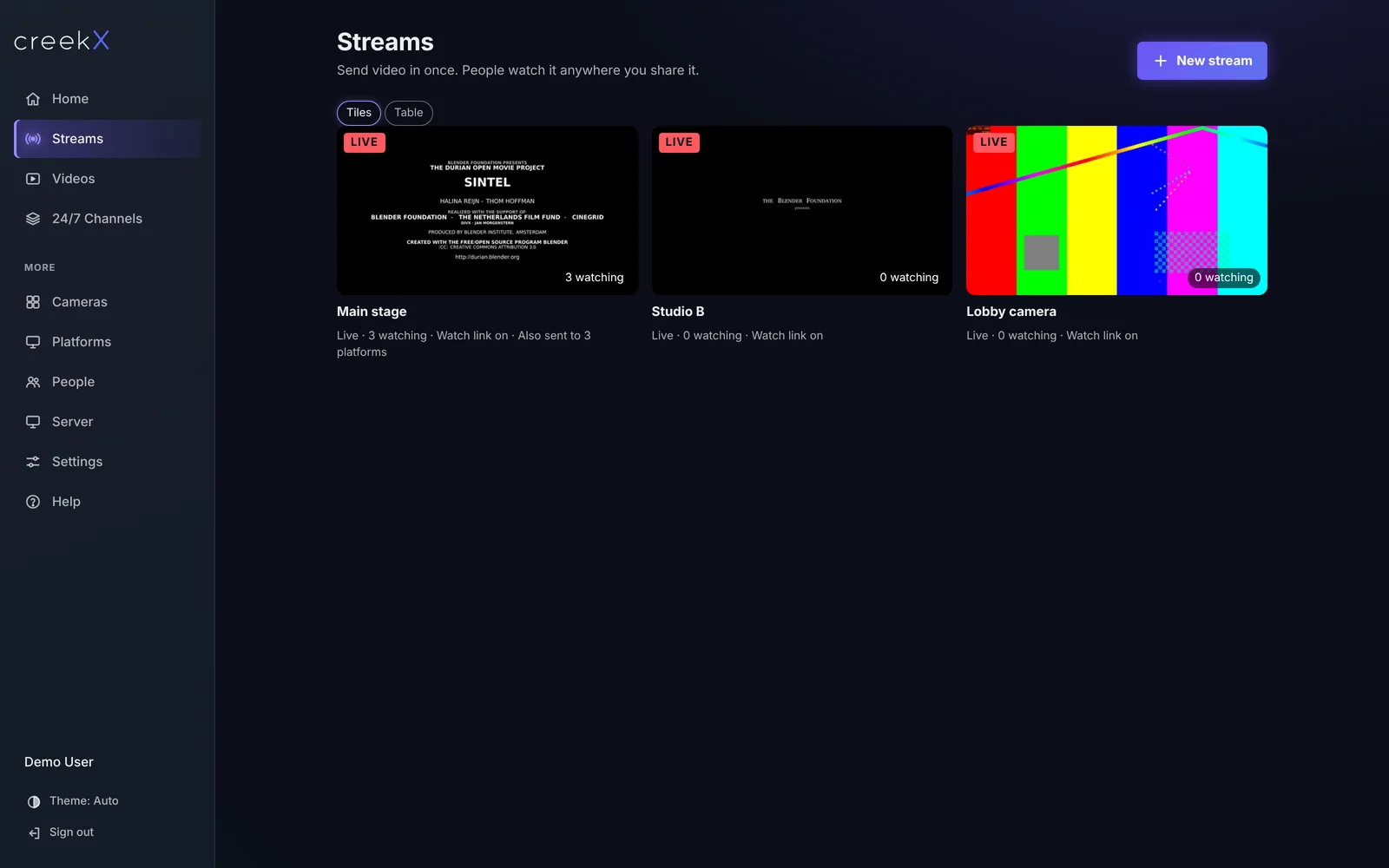
The stream turns LIVE within a few seconds of pressing Start, with its picture and how many people are watching. If it does not, the stream page says why: a wrong key, nothing arriving, or a codec the server had to convert.
RTMP or SRT?
OBS can send either. RTMP is the safe default on a good, nearby
connection. SRT is the better choice across the internet, on venue Wi-Fi
or on a phone network, because it resends lost packets within a fixed delay instead of
stalling. It can also be encrypted with a passphrase. In OBS, put the full
srt:// address (with the passphrase inside it) in the Server field and leave
the key empty. The trade-offs are compared in
SRT vs RTMP vs WHIP.
From a phone
Apps such as Larix Broadcaster have a custom RTMP or SRT connection: paste the same address and key. On mobile data, choose SRT.
Without OBS: the same from code
Everything above can be scripted. These are the calls and the FFmpeg command we used to test this post; the full walk-through is the REST API quick start.
# Make a stream and get its addresses
curl -X POST https://live.example.com/v1/streams \
  -H "X-CreekX-Key: YOUR-API-KEY" -H "content-type: application/json" \
  -d '{"name":"Main stage"}'
curl -X POST https://live.example.com/v1/streams/STREAM_ID/key/reveal \
  -H "X-CreekX-Key: YOUR-API-KEY"

# Send to it as OBS would: keyframe every second, no B-frames
ffmpeg -re -i show.mp4 -c:v libx264 -preset veryfast -tune zerolatency -g 30 -b:v 2500k \
  -c:a aac -b:a 128k -ar 48000 \
  -f flv "rtmp://live.example.com:1935/live/STREAM_ID?user=perpetua&pass=YOUR-STREAM-KEY"
-g 30 at 30 frames per second is OBS's "keyframe interval 1 s";
-tune zerolatency turns B-frames off.
In creekX: every stream accepts RTMP, RTMPS, SRT, RTSP and WebRTC at once, and the step-by-step lives in Go live from OBS or a phone app. Try it free.
Frequently asked questions
Can OBS stream to my own server instead of YouTube?
Yes. In Settings, Stream, set Service to Custom and paste the RTMP or SRT address and stream key your server gives you. OBS treats it like any platform.
What OBS settings give the lowest latency?
Advanced output mode, keyframe interval 1 second, and no B-frames: with x264 choose the zerolatency tune, with NVIDIA set Max B-frames to 0. Most of the delay with OBS defaults comes from the encoder itself.
Should I use RTMP or SRT from OBS?
RTMP is fine on a good, nearby connection. SRT copes far better with lost packets over long distances, Wi-Fi and mobile networks, and can be encrypted with a passphrase.