
Captions and search
Use this page when you want subtitles on your videos, or want to search for what was said in them. creekX turns speech into text on your own server, using whisper.cpp, so no audio leaves it. You can correct the captions, and every word becomes searchable across your library.
On this page
Automatic speech recognition needs the captions program and a model. Imported subtitles do not need that model; SRT, ASS/SSA and SCC conversion uses the server's media tools.
Make captions
-
Open the video
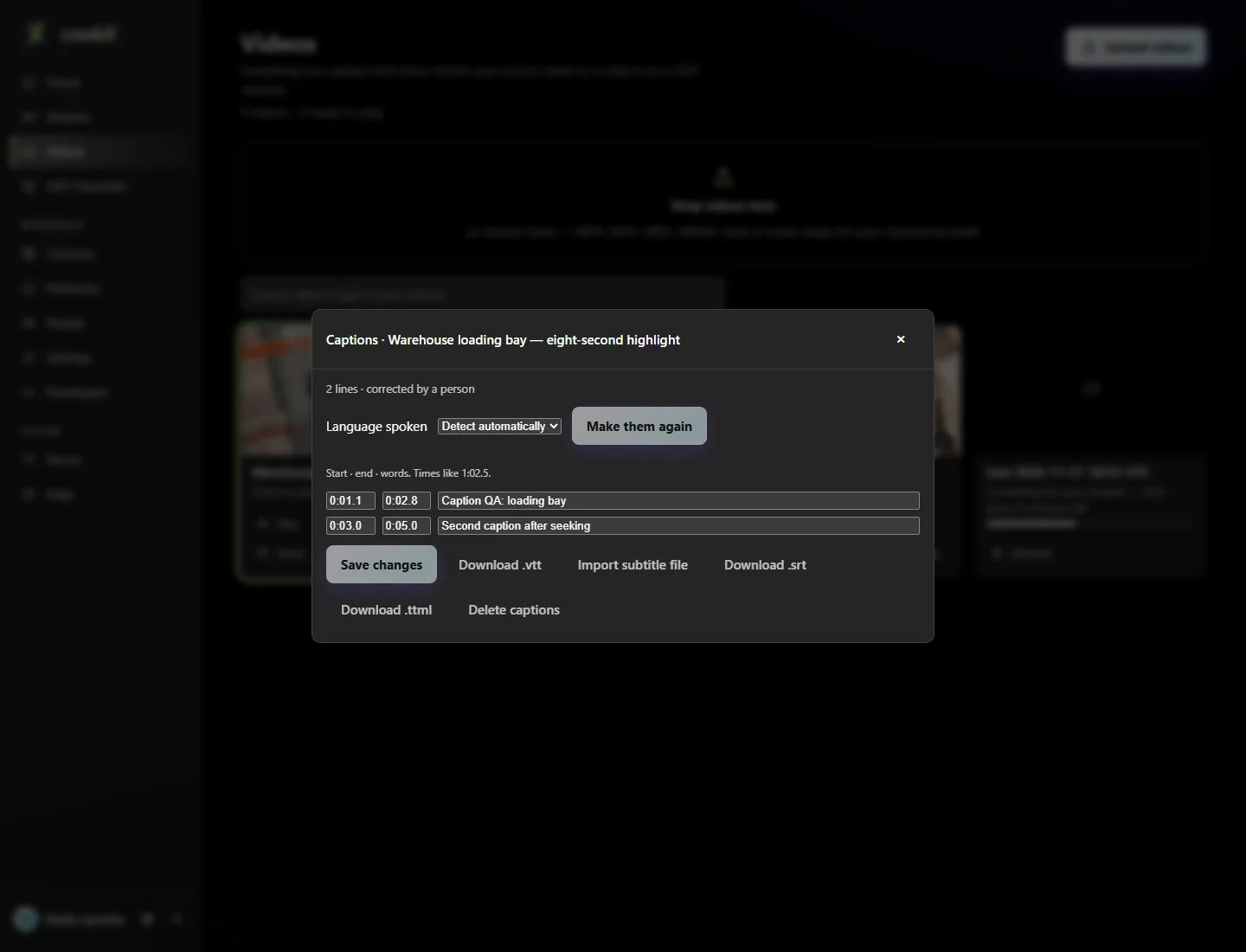
In Videos, open it and choose Captions.
-
Choose the language
Choose the language spoken, or Detect automatically.
-
Make them
Choose Make captions. Videos are listened to one at a time, so it may wait its turn. A long video takes a while.
Caption everything by itself
In Settings, under Captions, turn on Caption new videos and recorded Lives and choose the language usually spoken.
Correct them
Each line shows its start, its end and its words. Change any word and save. Your corrections are kept: making captions again asks first before replacing them.
Use your own captions file
Upgrade before using the new import formats and SRT/TTML downloads. Older servers accept only the earlier WebVTT/cue workflow.
In Videos, open a video and choose Captions, then Import subtitle file. Choose WebVTT (.vtt), SubRip (.srt), ASS/SSA or Scenarist (.scc). The browser accepts files below 900 KB, leaving space for the JSON request. Check the imported words and timestamps, then play a section with speech. Import replaces this video's current caption set and marks it edited, so automatic generation will not silently overwrite it.
Imports retain timed text, not ASS drawing, styling, screen positioning, SCC roll-up animation or multiple services. WebVTT display goes through the existing caption player. No translation is performed.
| Format | Import | Download |
|---|---|---|
| WebVTT | Yes | Yes |
| SRT | Yes | Yes |
| ASS / SSA | Timed text only | No |
| Scenarist SCC | Decoded timed text | No |
| TTML | No | Basic timed paragraphs, Unicode and line breaks |
Use Download .vtt, Download .srt or Download .ttml after importing or editing. Downloads require library read access and stay private to the workspace. Keep the original subtitle file if you need its styling or broadcast metadata.
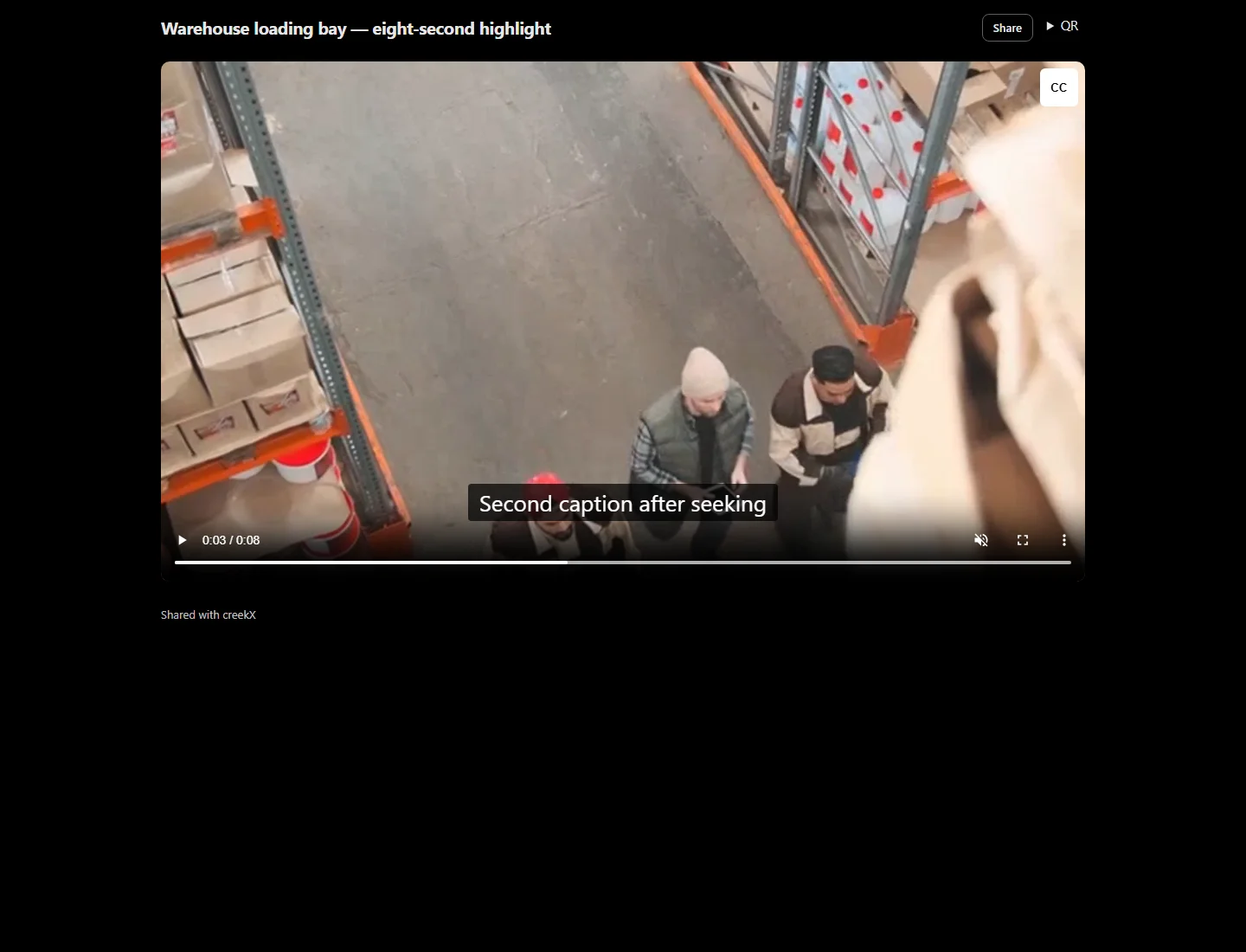
Open the video's watch link and use CC to show or hide the text. VOD captions use the video's playback time, including after a seek. Access follows the video's watch-link permissions. Channel captions still follow the scheduled programme; the existing channel-delay estimate is separate from VOD timing.
curl "$CREEKX_URL/v1/assets/$VIDEO_ID/captions" -X PUT \
  -H "X-CreekX-Key: $CREEKX_API_KEY" -H 'Content-Type: application/json' \
  -d '{"subtitle":{"format":"srt","content":"1\n00:00:01,000 --> 00:00:03,000\nWelcome\n"},"language":"en-GB"}'
For the API, send exactly one of cues, vtt or
subtitle. Imported language metadata accepts well-formed BCP 47 regional
tags; automatic transcription still uses its configured language list. One caption set is
stored per video. Importing a second language replaces the first.
Live embedded CEA-608/708 ingest and conversion, AMF text injection, 3GPP embedded text extraction, simultaneous selectable languages and broadcast delivery acceptance are separate work. This import workflow does not establish support for them. Test a sample with the actual target player before publishing accessible content.
Search what is said
In Videos, type in Search what is said in your videos. You get each video where the words were spoken, and when.
Check the captions before you publish
Play a section with speech and compare the words and timing, because speech recognition makes mistakes. Then search for a phrase you know is in there, and check it opens the right video. A video being ready doesn't mean captions are set up: they need the captions program on the server. Keep the original recording either way.