Features

Choose the CreekX features for your video setup

You may need live video close to real time, a channel that remains on air around the clock, or many IP camera feeds in one browser. CreekX runs on servers you control. Start by choosing Media Server or Cameras, then review the deployment, access and management capabilities relevant to your setup.

CreekX Media Server
Product workflow illustration. Conceptual flow; performance depends on your server and network.
01Product comparison

Start with the job you need to do

CreekX Media Server and CreekX Cameras are separate subscription products. Use the product pages below to review their specific capabilities. For deployment, identity, backup and administration requirements, follow the relevant technical page and confirm the required feature scope for your chosen product with CreekX.

Stream live video or run a continuous channel

Choose Media Server to accept video from a browser, encoder or camera and deliver it through WebRTC, HLS or low-latency HLS. It also includes scheduled 24/7 channels, viewer controls, recording and supporting live-video tools.

Bring IP camera feeds into one browser view

Choose Cameras to discover ONVIF cameras, connect RTSP feeds and show multiple live views on the Wall. Recording, playback, clips, snapshots, PTZ controls and per-site access are included.

Operate without a public internet connection

Paid deployments can use offline installation, licence and upgrade packages on customer-controlled servers. Fully offline and air-gapped projects begin with a conversation so the installation and hardware can be planned.

02Capabilities

Inside CreekX Media Server

Media Server covers live delivery, continuous channels and the tools needed to control and operate them on your server.

Live streaming

Receive RTMP, SRT, RTSP or WebRTC video. Viewers can watch through WebRTC, HLS or low-latency HLS, with several quality levels where the server has been sized for transcoding.

24/7 channels

Upload videos, arrange a schedule and keep a TV-style channel running between live contributions. The scheduling system refills the channel instead of requiring someone to provide a live source continuously.

Viewer access

Protect viewing with signed links, viewer tokens, IP allow-lists and blocks. An optional approval check can ask your own system to authorise a stream or viewer, while connection logs record when and how viewing occurred.

Video library and captions

Store and prepare videos for channels or on-demand viewing. Captions are generated on your server; their speed and accuracy depend on its hardware and the language being spoken.

Supporting live-video tools

Send a stream to several external destinations, open small live rooms in a browser, record streams and connect operational workflows through the REST API and webhooks.
Real software.
Everyday control.

Explore the existing CreekX interface. These screenshots come from a demo installation; they are not customer deployments.

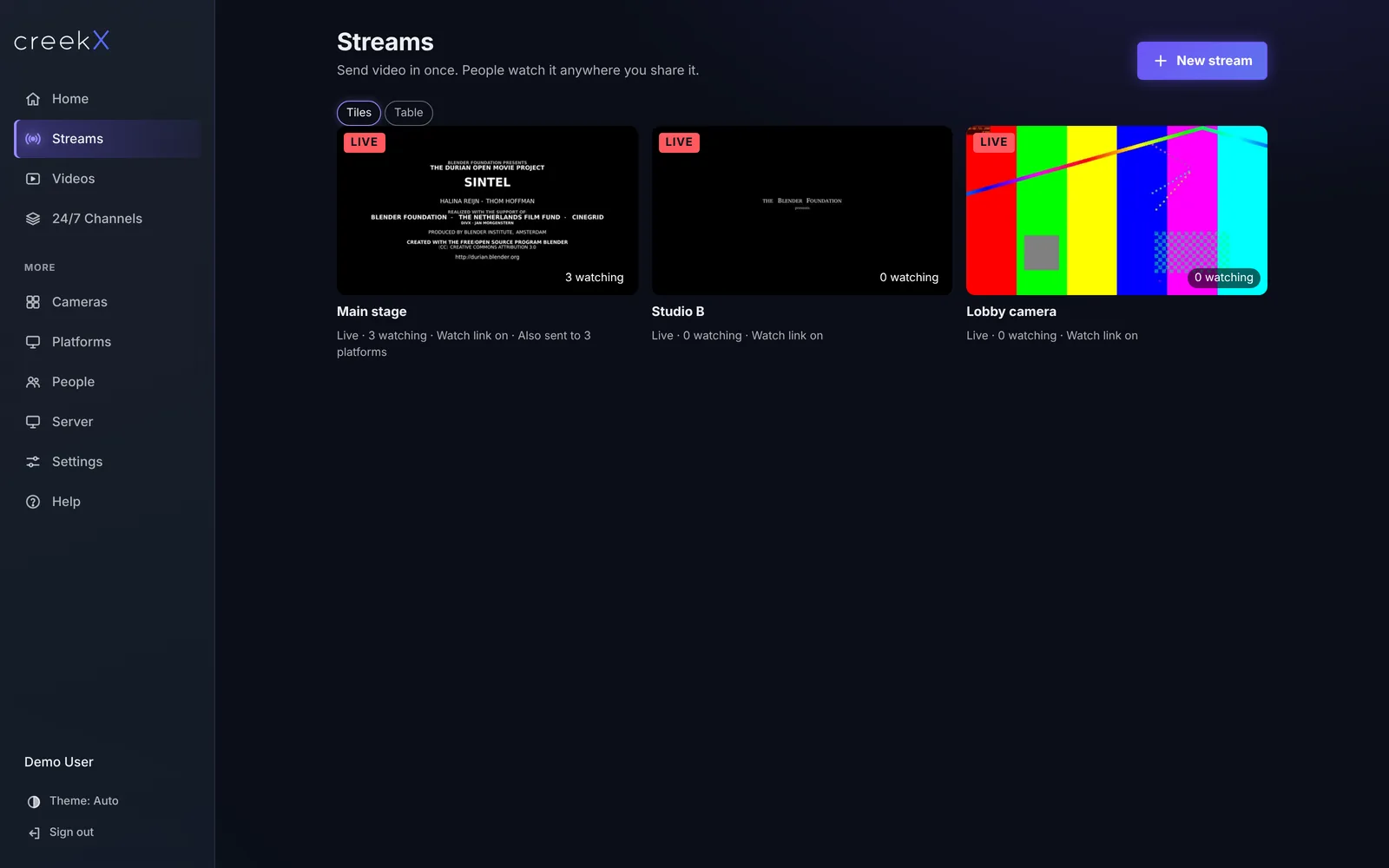
Actual CreekX streams screen from a demo installation

Streams

Manage live sources and viewing paths.

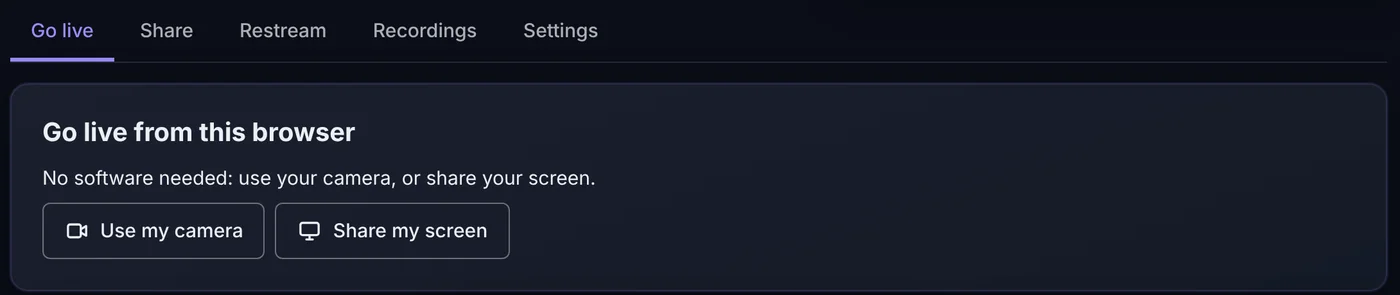
Actual CreekX go live screen from a demo installation

Go live

Find your encoder and browser connection settings.

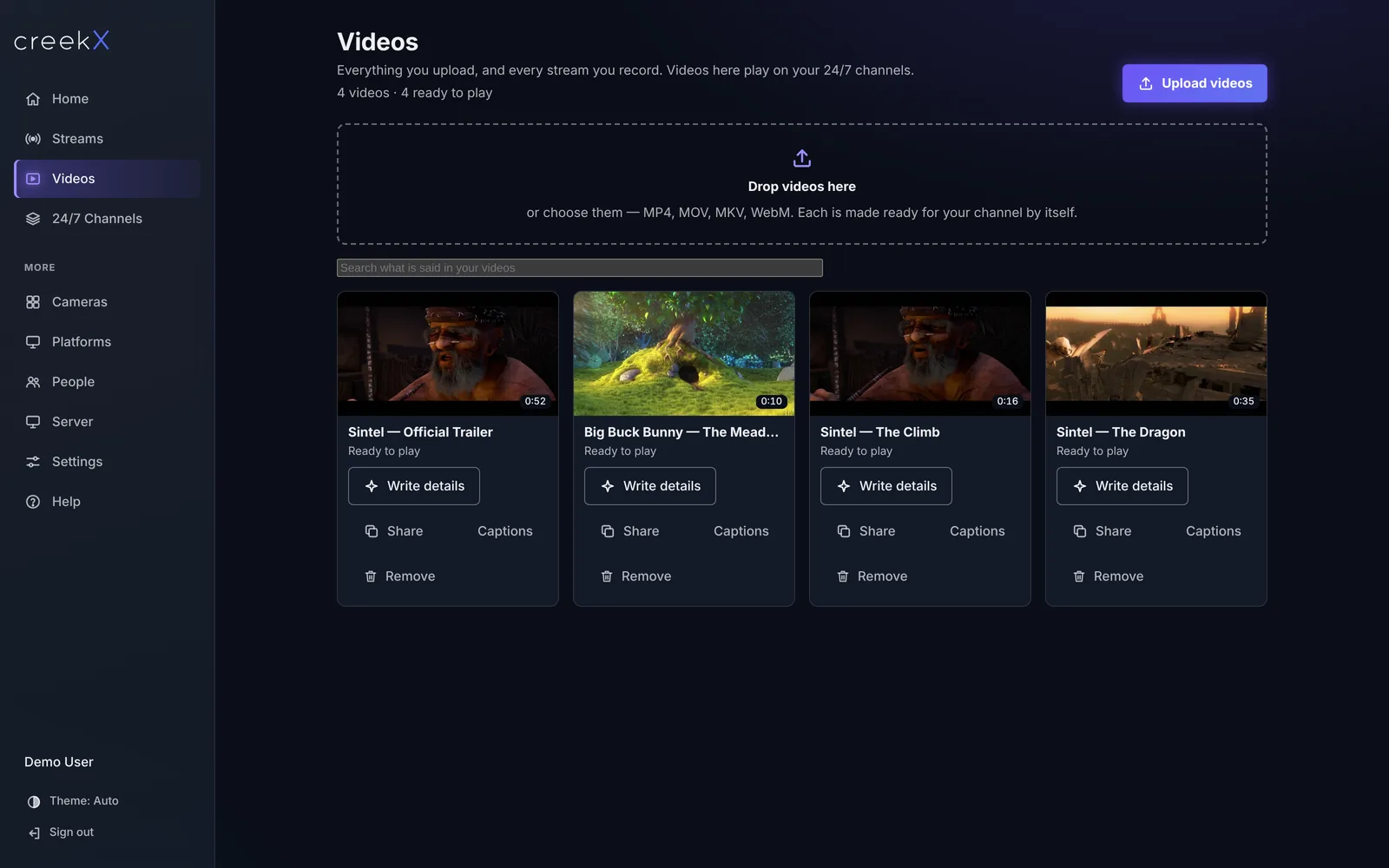
Actual CreekX video library screen from a demo installation

Video library

Keep recordings and scheduled content together.

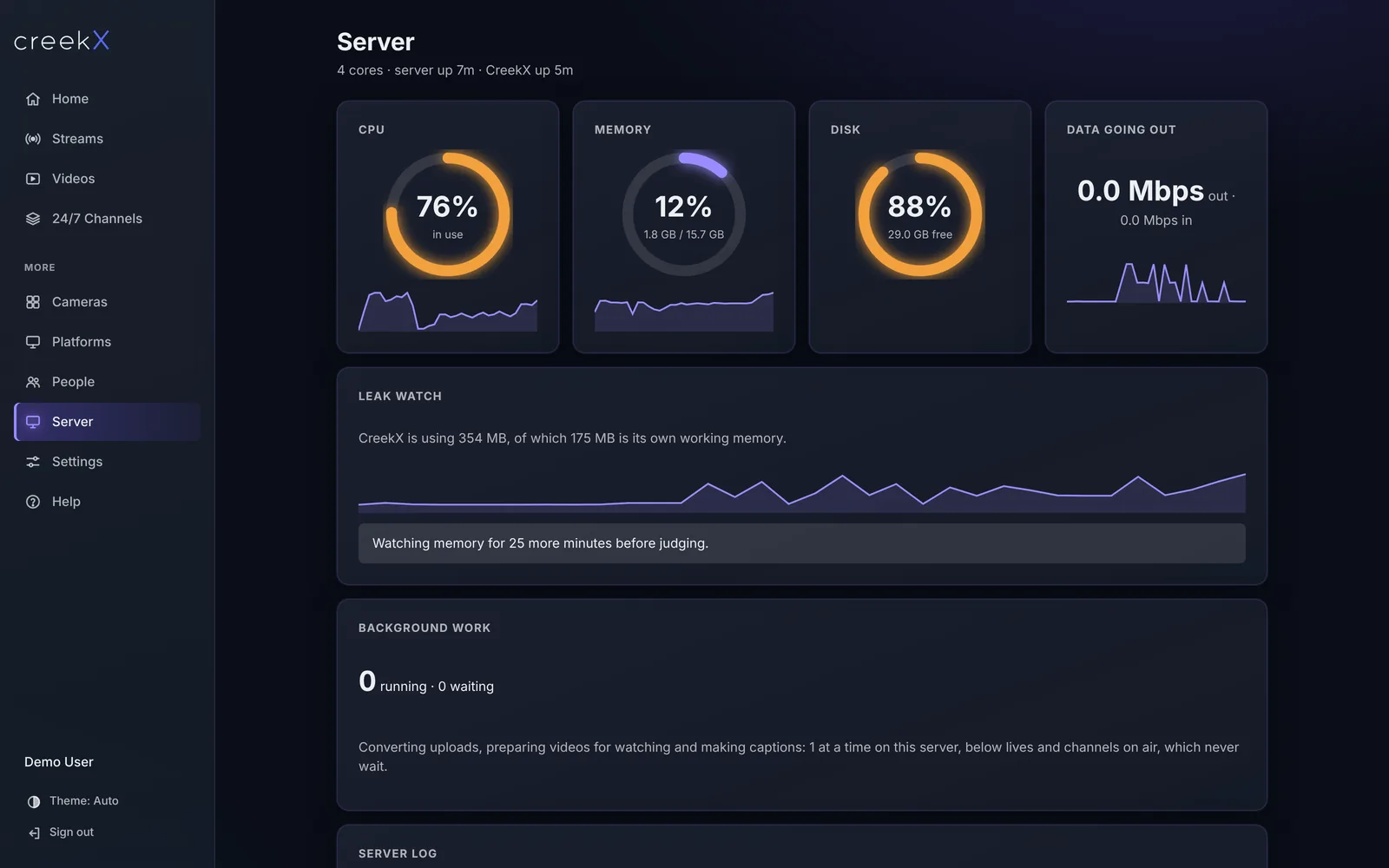
Actual CreekX server health screen from a demo installation

Server health

Inspect your server resources and logs.

03Capabilities

Inside CreekX Cameras

Cameras is licensed per camera and evaluated through an assisted pilot rather than the Media Server trial. It is intended for teams that need live browser viewing and recorded footage from camera networks on infrastructure they control.

Camera connection and discovery

Discover ONVIF cameras on the network or connect camera feeds through RTSP. Confirm specific models before rollout; support for cameras that only use ONVIF Media2 is being added.

Live camera wall

Arrange multiple camera feeds on one browser screen for a control room, operations team or remote viewer.

Recording and review

Record camera video on your own disks, move through the playback timeline and create clips or snapshots when something needs to be reviewed or shared.

Site controls and displays

Limit each person to permitted camera sites, operate supported PTZ controls, receive camera-offline alerts and use the Android kiosk player for locked view-only screens.

04technical brief

Control deployment, access and server operations

Customer-controlled deployment

CreekX installs on your Ubuntu server. Paid licences include a self-install kit, updates released during the subscription and offline upgrade packages. The Media Server trial requires internet access during installation.

Offline operation and data paths

A fully offline package and offline licence file are supplied through CreekX for suitable deployments. CreekX has no telemetry, but customer-enabled services such as off-site backups or other outbound integrations create their own external data paths.

Identity and access

Use owner, administrator, operator and viewer roles, API keys and OpenID Connect sign-in. Viewer links, access rules and logs provide separate controls for people watching streams.

Administration and backups

The admin console shows processor, memory, disk and network health alongside server logs. Optional off-site backups are encrypted on your server before transfer. Recorded and library files require disk encryption on your server when encryption at rest is needed.

05Scope & limitations

Check capacity and compatibility against your setup

The number of streams, channels, cameras and viewers a server can handle depends on its hardware, network connection, video quality, recording load and transcoding work. Channel capacity per server has not yet been load-tested, and broad physical-camera validation is still outstanding. Projects involving several servers, more than 50 live streams or thousands of viewers should be sized with CreekX before deployment.

  • Current delivery formats are WebRTC, HLS and low-latency HLS.
  • Camera planning should be based on ONVIF or RTSP support and the specific models involved.
  • Projects that depend on custom product development or distribution across several servers require a fit discussion before purchase.
06First-party evidence

Check the product before you commit

CreekX provides three practical ways to evaluate the software without relying on customer stories or unsupported promises.

Install the Media Server trial

The 14-day trial requires no credit card and includes the Pro feature set with trial limits of up to five 24/7 channels, five restream destinations per stream and 500 library videos. It does not include the Cameras portal or the fully offline installer.

Inspect the technical documentation

Public guides cover installation, live sources, channels, recordings, sharing, viewer security, sign-in, backups, licensing and troubleshooting. A separate OpenAPI 3.1 reference documents the REST API.

Review measured benchmark conditions

The benchmark page separates measured results from calculated network estimates and untested capacity, with the product version, server, video, network and test method stated alongside the figures.

07Your next step

Take the next step that matches your evaluation

Start the trial if you are evaluating Media Server on Ubuntu or a compatible Ubuntu environment. Talk to CreekX first for Cameras, a fully offline site, a tender, a large deployment or installation and training services. Describe what you want to stream, your approximate number of channels, cameras and viewers, the delay you can accept and whether the system must run offline. If you are not sure about the hardware or protocols, say so; those details can be worked through during the call.